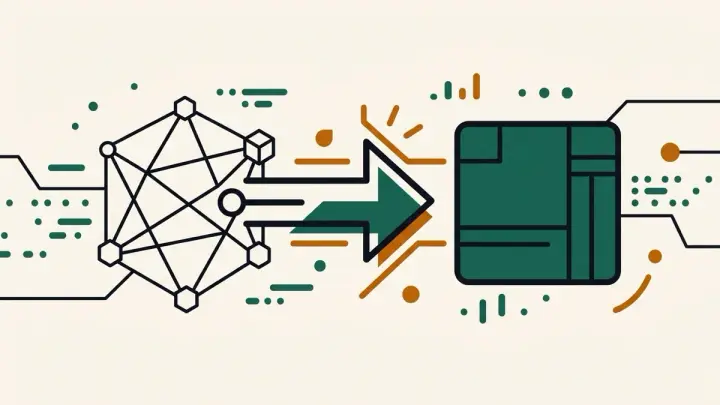
A stroked SVG path looks like an outline on screen, but the path data itself only describes a center-line — the visible thickness is drawn on top by the stroke-width property. Cutting machines like laser cutters and vinyl/craft cutters follow the literal path coordinates, so a "thick" stroked outline actually gets cut as one thin line straight down the middle, not around the visible edge.
SVG stroke to fill converter for laser cutters and cutting plotters
This tool converts a stroked path into an actual filled shape whose outer boundary traces the visible edge of the original stroke — the correct geometry for a cutting blade or laser head to follow.
Convert SVG stroke to fill online, with real join and cap handling
The conversion reads each shape's stroke-width, stroke-linecap, and stroke-linejoin attributes and reproduces them in the filled outline — round, square, bevel, and miter joins are all supported (dashed strokes aren't, yet).
Outline SVG path for laser cutter or icon system compatibility
Some icon systems and rendering environments ignore the stroke attribute entirely; converting to fill makes the shape render identically everywhere, cutting machine or otherwise.
Why an SVG isn't cutting cleanly on a Cricut or Silhouette
If a design looks right in a browser preview but cuts as a thin line (or doesn't cut the visible shape at all), a stroke-only path with no fill is a common cause — this tool fixes exactly that mismatch.