Checking the popular free HEIC converters directly turns up the same tradeoff every time. CloudConvert processes files on its own servers in Germany and holds onto them for 24 hours before deleting — meaning family photos, screenshots, or anything sensitive leave your device even for a routine format swap. Several of the "free unlimited" online converters also lock output to JPG only, with no quality slider and no PNG or WebP option, so there's no way to control the size/quality tradeoff or keep transparency. A recurring complaint across converter reviews is full-screen ads appearing between conversions when processing more than one photo at a time.
Why won't my iPhone photos open on Windows?
Since iOS 11, iPhones save photos as HEIC by default — a more efficient format than JPEG, but one that older Windows versions, many upload forms, and a long tail of everyday apps still can't read. Microsoft's free HEIF extension helps Windows preview HEIC files, but that only fixes viewing — a form or portal that rejects a .heic upload outright still needs an actual JPG file, not just the ability to look at one.
Convert HEIC to JPG without uploading it anywhere
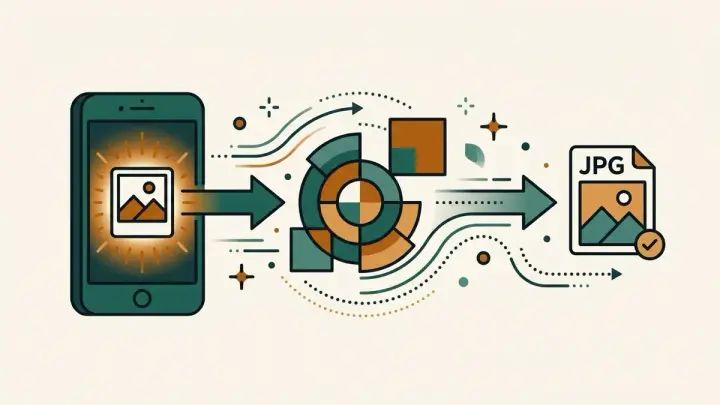
This tool decodes and re-encodes the photo entirely inside your browser using the same WASM-based decoder that powers our Photo Privacy Checker. There's no server round trip — the file never leaves your device, so there's nothing to worry about with a 24-hour retention window on someone else's server.
HEIC to PNG converter, online and free
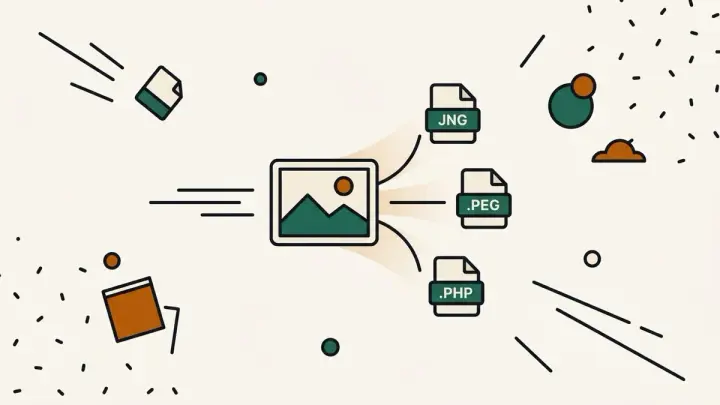
JPG isn't always the right target — a HEIC screenshot with transparency, for example, needs PNG to keep it. This tool lets you pick JPG, PNG, or WebP as the output format, not just JPG.
Batch HEIC to JPG converter, no login required
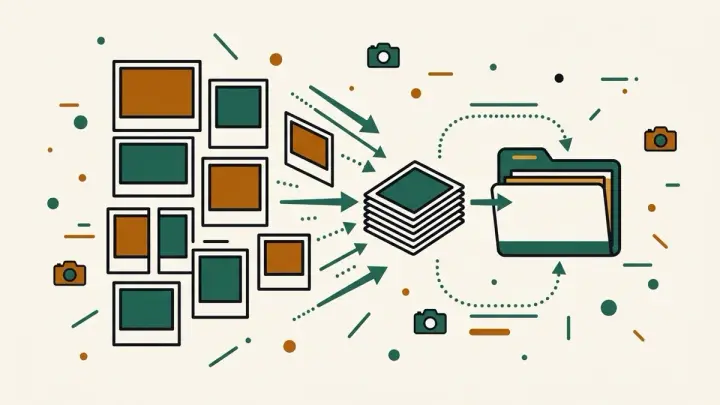
Drop in several HEIC photos at once and each one converts and downloads independently — no account, no per-file upload limit, and no ads between conversions.